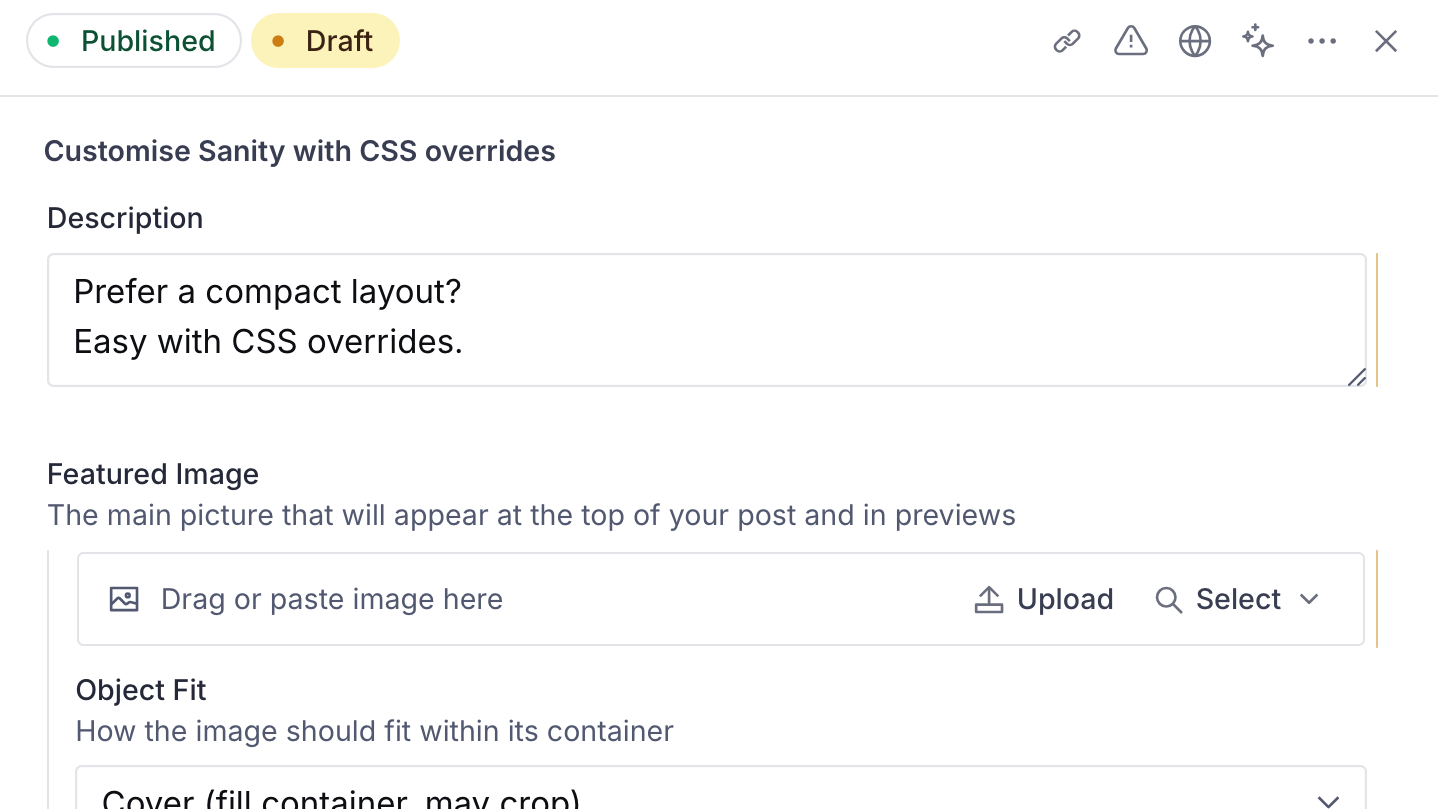
Sanity supports deep customisation through Form Components. Sometimes you only need a quick visual change without rebuilding or replacing parts of the form.
Sanity’s rendered interface includes class names like .yDMaR that provide little context and may change between builds. Attributes such as data-ui, data-testid and data-level give you clearer targets for small Studio overrides.
This guide uses field spacing as a practical example, but the same approach can be used to reshape almost any part of the Studio interface.
Create an override stylesheet
Create a sanity.overrides.css file. You could place it in a dedicated styles folder. I keep it alongside sanity.config.ts so it stays associated with the Studio setup.
/**
 * Custom styles for the Sanity Studio interface.
 * Targets rendered data attributes rather than generated class names.
 * Review after updates that change Sanity Studio’s rendered interface.
 */
Import the stylesheet in sanity.config.ts:
import { defineConfig } from 'sanity'
import './sanity.overrides.css'
Any styles added to that file will now apply throughout the Studio.
Target data attributes
Inspect the part of the Studio you want to change and look for useful attributes such as:
data-ui="Stack"
data-testid="field-groups"
data-level="0"
role="dialog"
You can combine these attributes to target specific elements and relationships within the interface.
Here is the spacing setup I use:
/* Reduce spacing between the field group tabs and the first field */
[data-testid='field-groups'] {
  padding-bottom: 5px;
}

[data-testid='field-groups'] + [data-testid^='field-'] {
  margin-top: -1rem;
}

/* Reduce spacing between top-level fields in document forms */
[data-as='form'] > [data-ui='Stack'],
[data-as='form'] > [data-ui='Stack'] > [data-ui='Stack']:not([data-level]) {
  gap: 2rem;
}

/* Reduce spacing between top-level fields in edit dialogs */
[role='dialog'] [data-ui='Stack']:not([data-level]):has(
  > [data-testid^='field-'],
  > [data-level]
) {
  gap: 1.5rem;
}

/* Reduce spacing between nested object fields */
fieldset[data-level] [data-ui='Stack']:not([data-level]):has(
  > [data-testid^='field-']
) {
  gap: .5rem;
}

/* Reduce vertical padding within field headers */
[data-as='div'][data-ui='fieldHeaderContentBox'],
[data-ui='fieldHeaderContentBox'] > [data-ui='Stack'] > [data-ui='Flex'] {
  padding: 0.3rem 0;
}

/* Reduce spacing between field headings and descriptions */
[data-ui='fieldHeaderContentBox'] > [data-ui='Stack'] {
  gap: 0.5rem;
}
The values are deliberately tight. I prefer a compact layout on smaller laptop, tablet and phone screens. Where extra spacing means fewer fields stay in view. Treat them as a starting point and adjust them to suit your own Studio.
Testing and refining overrides
Data attributes make Sanity’s interface easier to target but they still reflect the structure rendered by the Studio. A selector may reach into parts of the interface you did not intend. Another may miss field types built with different markup.
Treat your overrides as a starting point. Check them across the Studio and refine the selectors as you encounter new layouts.
Use your browser tools
The browser inspector is the quickest place to explore the Studio interface.
Inspect the element you want to change and look through its parents, siblings and children for useful patterns in the data attributes:
data-ui="Stack"
data-testid="field-groups"
data-level="0"
role="dialog"
You can then test selectors directly in the inspector stylesheet and adjust the values live before adding them to your project.
Check more than the element in front of you. Similar attributes may also appear inside references, objects, arrays, dialogs or custom inputs.
Keep selectors narrow
A broad selector can affect more than you intended.

I originally targeted nested Stack elements. It reduced the space between document fields. It also increased the internal spacing of my Reference fields.
[data-as='form'] > [data-ui='Stack'] > [data-ui='Stack'] {
  gap: 2rem;
}
Inspecting the markup revealed that Sanity adds the data-level attribute to individual field stacks. Using that to our advantage we can exclude those with :not([data-level]).
Expect some refinement
Sanity does not render every part of the Studio in the same way. An override that works in one area may miss another or affect something you didn't intend.
Expect to narrow or extend your selectors as these edge cases appear. Some areas of the Studio that required changes to my selectors were:
Referencefields with nested input layoutsObjectfields with additional fieldsObjectandArrayedit dialogsPortable Textedit dialog- Tabs for
Field Groups - Custom input components
Try other interface tweaks
I wanted tighter spacing but the possibilities are endless.
Use the same approach anywhere Sanity’s defaults feel like they could work better for your Studio.


